
There's a quick and easy way to set up email on your iPhone or iPad. On the device you wish to set up mail:
Auto-Configuration
 Account type: IMAP
Incoming Mail Server
Account type: IMAP
Incoming Mail Server
- Head to Manage Hosting > Options > Manage.
- Select Email Accounts.
- Select Options > Account Setup.
- You'll then see the Download iOS Mobile Profile button, select this to download the correct information to your iPhone to set up your email account.
- Review and install the profile on your phone, you'll need to enter your mailbox password to complete the setup.
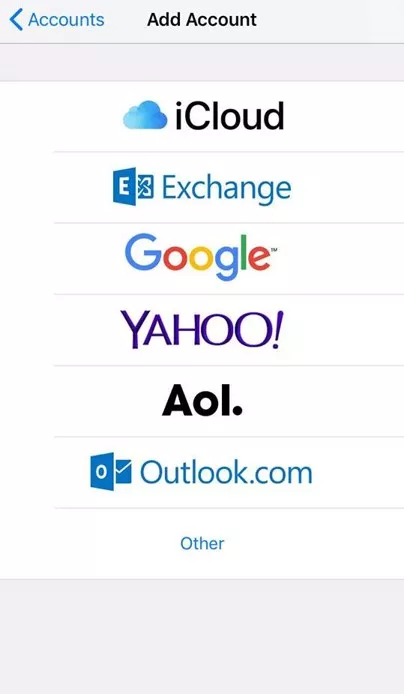
- Head to the Settings icon and locate the Accounts & Passwords option.
- Then select 'Add Account'.
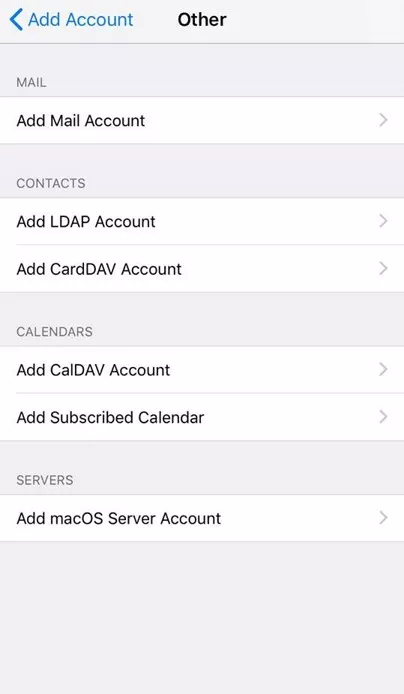
- Select Other from this list.
- Select Add Mail Account.
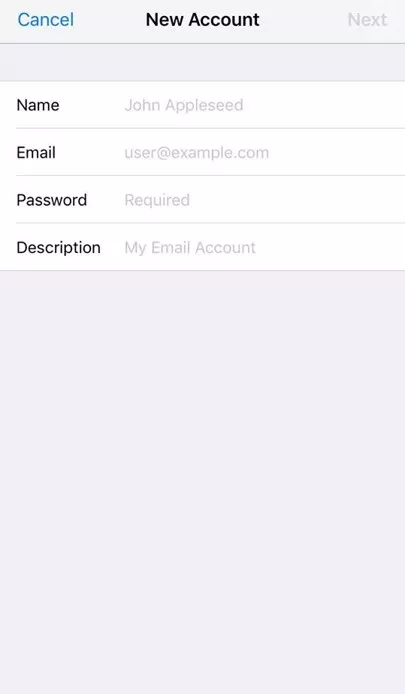
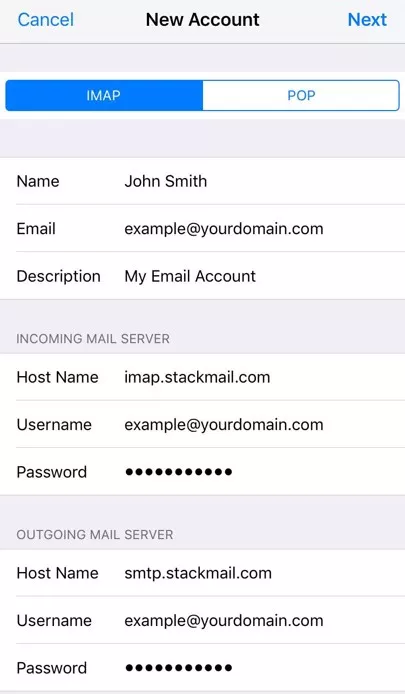
- Input the information requested:
Account type: IMAP
Incoming Mail Server
- Host Name: imap.stackmail.com
- Username: your email address
- Password: Mailbox Password
- Incoming server port (IMAP): 993
- Use the following type of encrypted connection: SSL
- Host Name: smtp.stackmail.com
- Username: your email address
- Password: Mailbox Password
- Outgoing server port (SMTP): 465
- Use the following type of encrypted connection: SSL/TLS
- Finally, select the mail account and go into the Outgoing Mail Server settings. Select Primary Server, make sure SSL is switched on and the port is set to 587.